The private clipboard manager

Clipboard history that stays private

Clipsa remembers what you copy so you can find it and paste it again from the keyboard. Your history stays on your device, every item is encrypted, and nothing is sent anywhere.

macOS · Windows · Linux · Free and open source · Version 0.1.3

Homebrew brew install --cask mordamax/tap/clipsa

The Clipsa quick picker open over a mail draft. A search field with type filters (All, Text, Rich, Images, Files, Pinned) sits at the top; three pinned items come first (Stand-up link, Email sign-off and Bug report template), followed by today's copies: a git command, rich text, an image and a link, each with a ⌘1 to ⌘9 shortcut. The selected image is previewed on the right with its dimensions, size and dates. Keyboard hints run along the bottom.
Press Cmd or Ctrl + Shift + V in any app, pick an item and press Enter to paste it.
  • MIT licensed Open source on GitHub
  • Encrypted by default AES-256-GCM, key in your keychain
  • No account No telemetry, no analytics
  • Every desktop macOS, Windows, Linux

How it works

Copy. Summon. Paste.

No new habits. Copy as you always do; Clipsa keeps it, and a shortcut brings it back in any app.

  1. 1

    Copy as usual

    Text, rich text, images and files are saved to your history, encrypted, as you copy them.

  2. 2

    Open the picker

    Press Cmd/Ctrl + Shift + V anywhere. Type a few letters to filter.

  3. 3

    Paste it back

    Enter pastes into the app you were using. Shift + Enter pastes the other way: plain text or formatted.

Privacy

Built like a vault, not like a cloud service

You copy passwords, addresses, messages and work you have not shared yet. A clipboard manager stores all of it, so Clipsa keeps it on your device and unreadable to anyone else.

  • Encrypted by default

    Each item is encrypted individually with AES-256-GCM before it is written to disk, with nothing to set up. The key is kept in your OS keychain, not next to the data, and history lives in a local database: no account, no server, nothing to upload.

  • Password copies skipped

    Copies that password managers mark as concealed or transient are never recorded (macOS and Windows). You can also exclude whole apps.

  • App lock

    Require Touch ID or your login password (macOS) or Windows Hello to see your history after Clipsa has been in the background.

  • No network by default

    No requests unless you opt in to update checks. No telemetry, analytics or crash reporting.

  • Deleted means overwritten

    The database runs with secure delete, so removed items are overwritten instead of lingering in free space.

  • Open source

    All of the code is on GitHub under the MIT license, and the security model is documented, including its limits.

Why encrypt, if password copies are skipped?

Skipping only catches copies that a password manager explicitly marks as secret. Most sensitive things people copy carry no such mark, so a clipboard history slowly becomes a months-long log of them.

Skipped automatically

  • A password from 1Password or Bitwarden (macOS and Windows)
  • Copies from apps you exclude (macOS and Windows)

Still saved, so encrypted

  • A password from Notes, a chat or a text file
  • 2FA and recovery codes
  • API keys and tokens from a terminal or dashboard
  • Seed phrases, card numbers, bank details
  • Private messages, addresses, medical or legal text

Encryption keeps that log unreadable when the database file leaves Clipsa's hands: in Time Machine or cloud backups, on an unencrypted backup drive, when malware or a sync tool copies app data folders, or when another administrator account reads your files. Without the key from your keychain, the file is noise.

Limits. Item contents are encrypted; metadata such as content type, size and timestamps, and your settings, are not. Clipsa protects history at rest, such as a copied or backed-up database file. It is not a sandbox against malware: code running as your user while you are logged in can read the clipboard directly.

Features

Everything you copied, one shortcut away

A fast, keyboard-first history for everything you copy, with the pieces you reuse kept close.

Quick picker

Find it in a few keystrokes

Press Cmd/Ctrl + Shift + V in any app. Type a few letters and Enter pastes the item straight into the app you were using.

  • Pinned items and snippets come first.
  • Shift + Enter pastes as plain text; Cmd/Ctrl + 1–9 pastes one of the first nine items.
  • The hotkey is configurable, or you can turn it off.
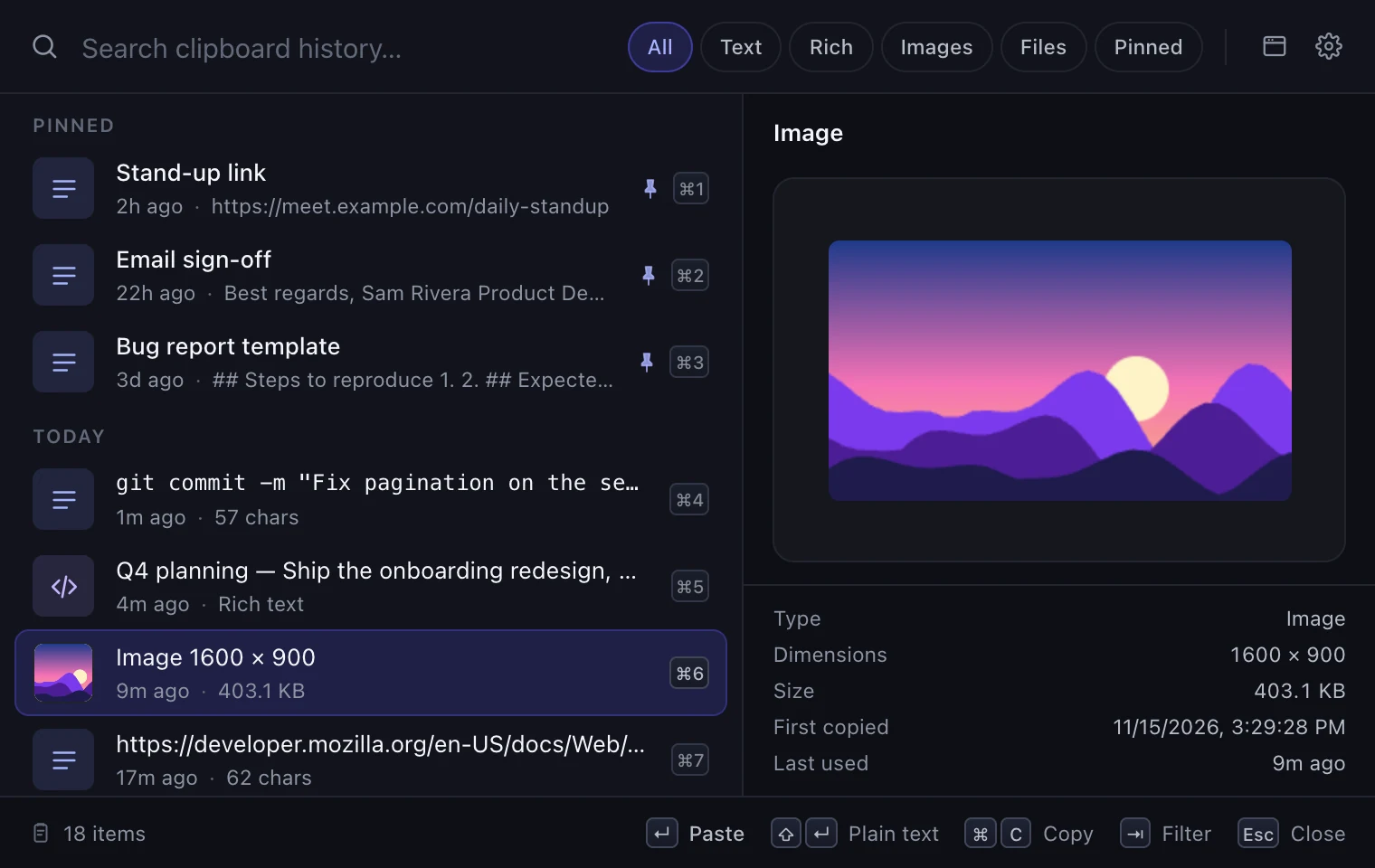
The quick picker: pinned items first with a pin icon, today's copies below with ⌘1 to ⌘9 shortcuts, type filters next to the search field and a preview of the selected image with its details on the right.

Pinned items & snippets

Keep what you paste every day

Pin anything to keep it forever. Pinned items are exempt from retention and "Clear history". Give them a name, or write reusable text snippets for sign-offs, links and templates.

  • Named items show their title in the picker.
  • Edit a snippet's text and title in place.
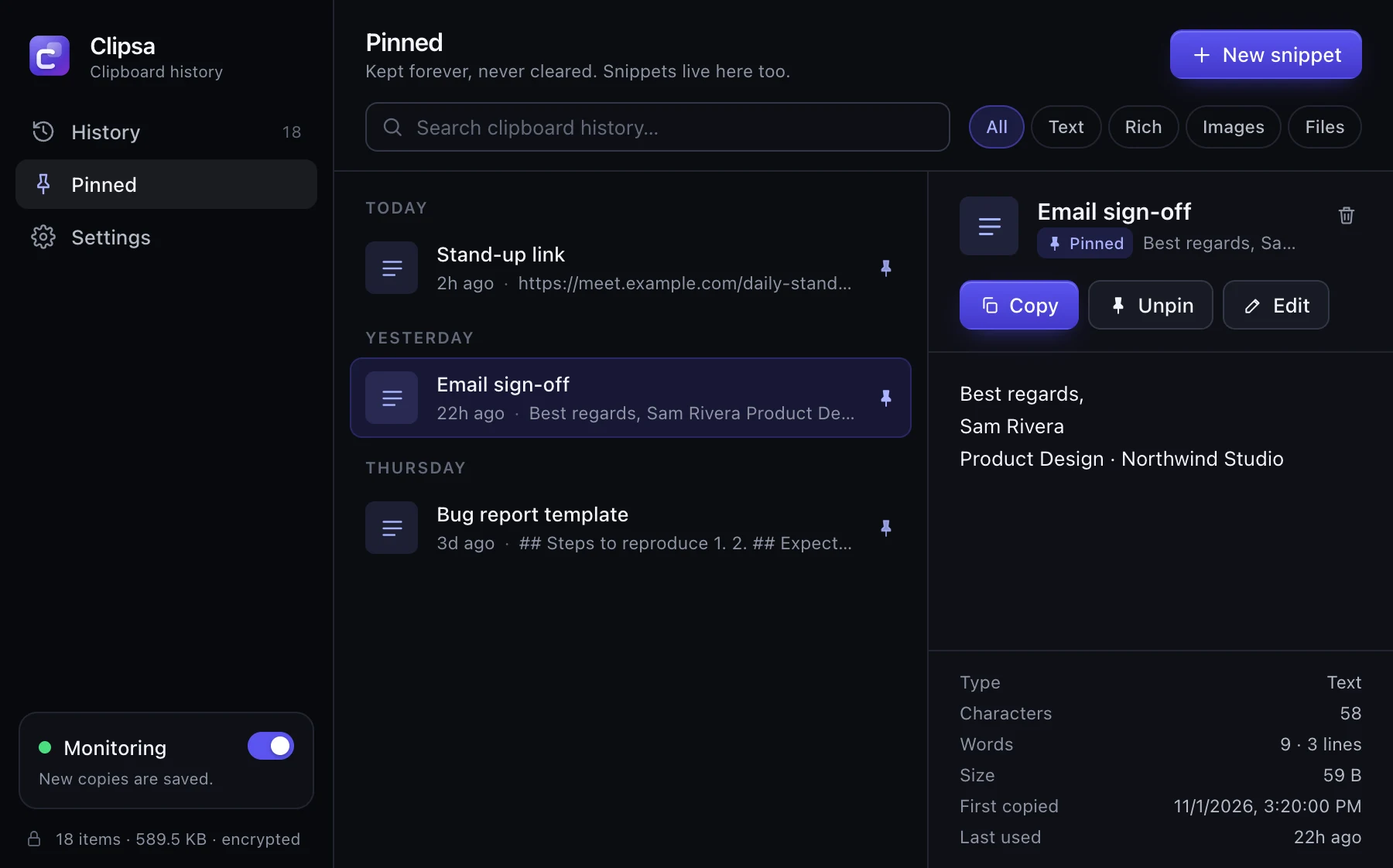
The Pinned view of the Clipsa window with a New snippet button and three named items: Stand-up link, Email sign-off and Bug report template. Email sign-off is selected and shown in a detail pane with Copy, Unpin and Edit buttons, its full text and details such as characters and size.

Rich content

Text, rich text, images and files

Rich text keeps its HTML and plain-text versions, images are stored as PNG and file copies as their paths. Copying an item again restores its original format.

  • Search the text and titles of your history.
  • Filter by content type.
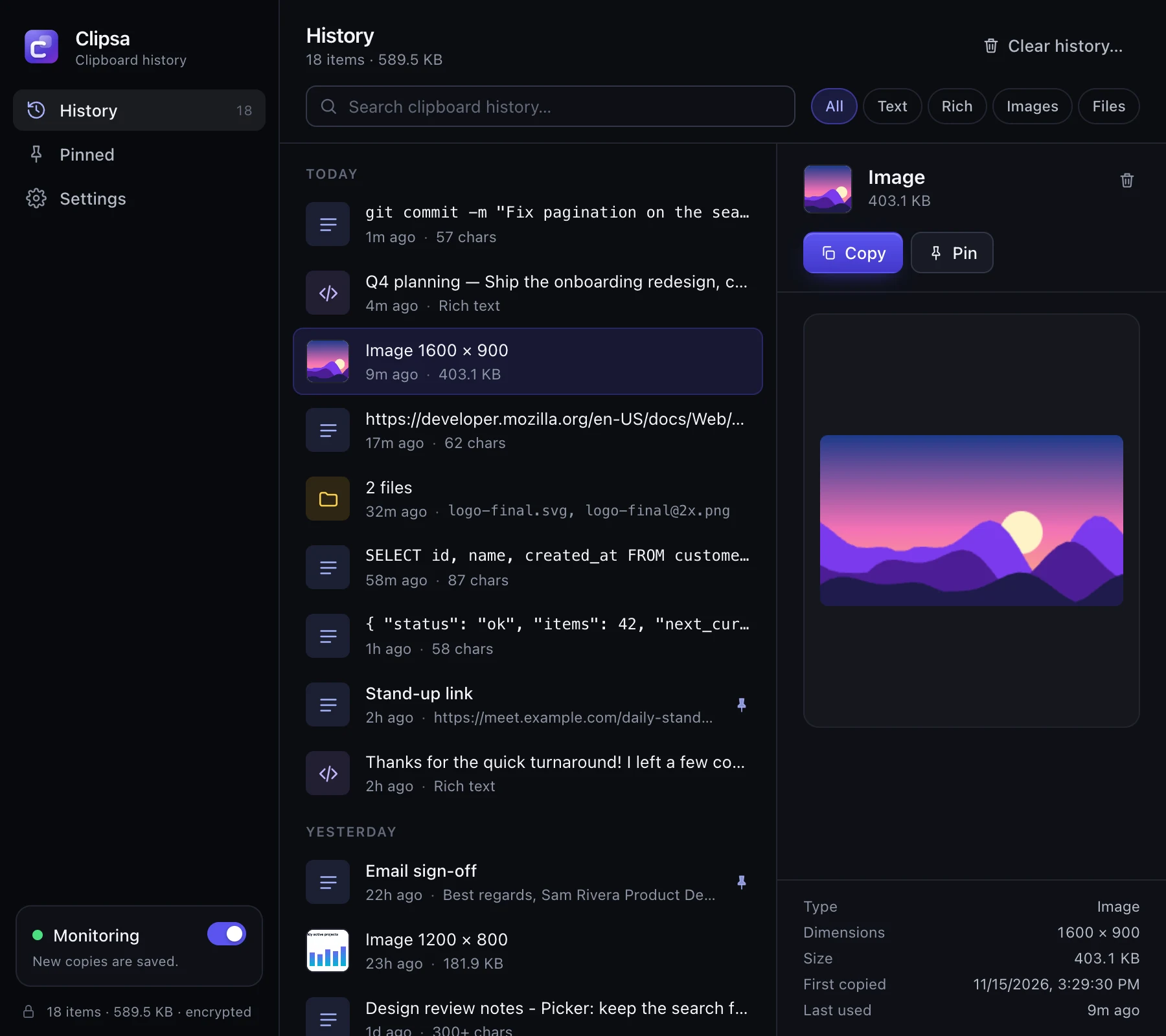
The Clipsa history window grouped by day: a git command, a rich-text note, an image of a mountain sunset, a link, two file paths, an SQL query and more, with a search box and content-type filters above. The selected image is previewed in a detail pane with its dimensions and size.

App lock

Locked when you step away

Require Touch ID or your login password (macOS) or Windows Hello to see history after Clipsa has been in the background for a time you choose. Capture keeps running while locked.

  • Locks the history window and the quick picker.
  • Lock as soon as Clipsa is hidden, or after a delay you choose.
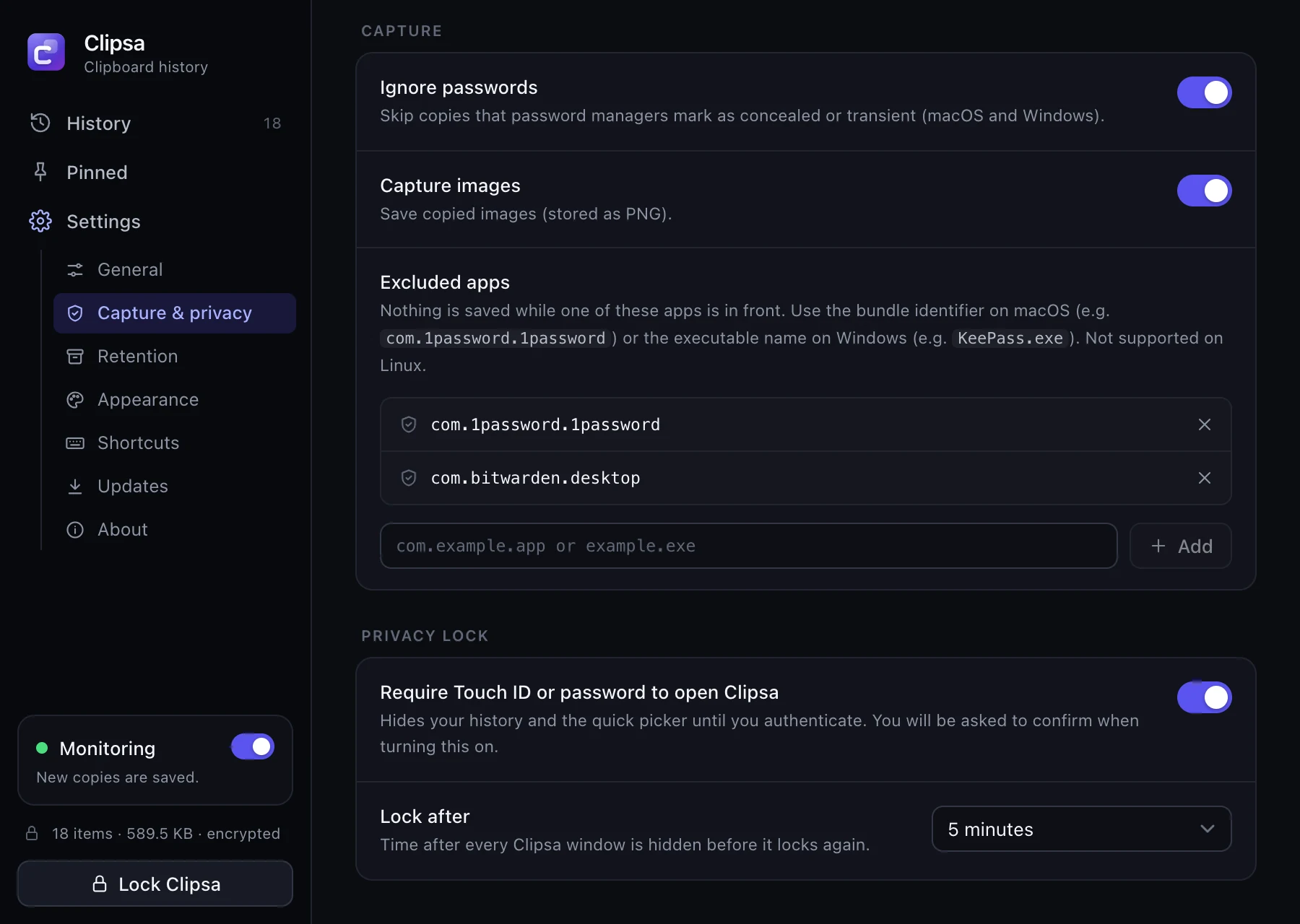
Clipsa settings, Capture and privacy: Ignore passwords turned on, two excluded apps (com.1password.1password and com.bitwarden.desktop), and the Privacy lock section with Require Touch ID or password to open Clipsa turned on and Lock after set to 5 minutes.
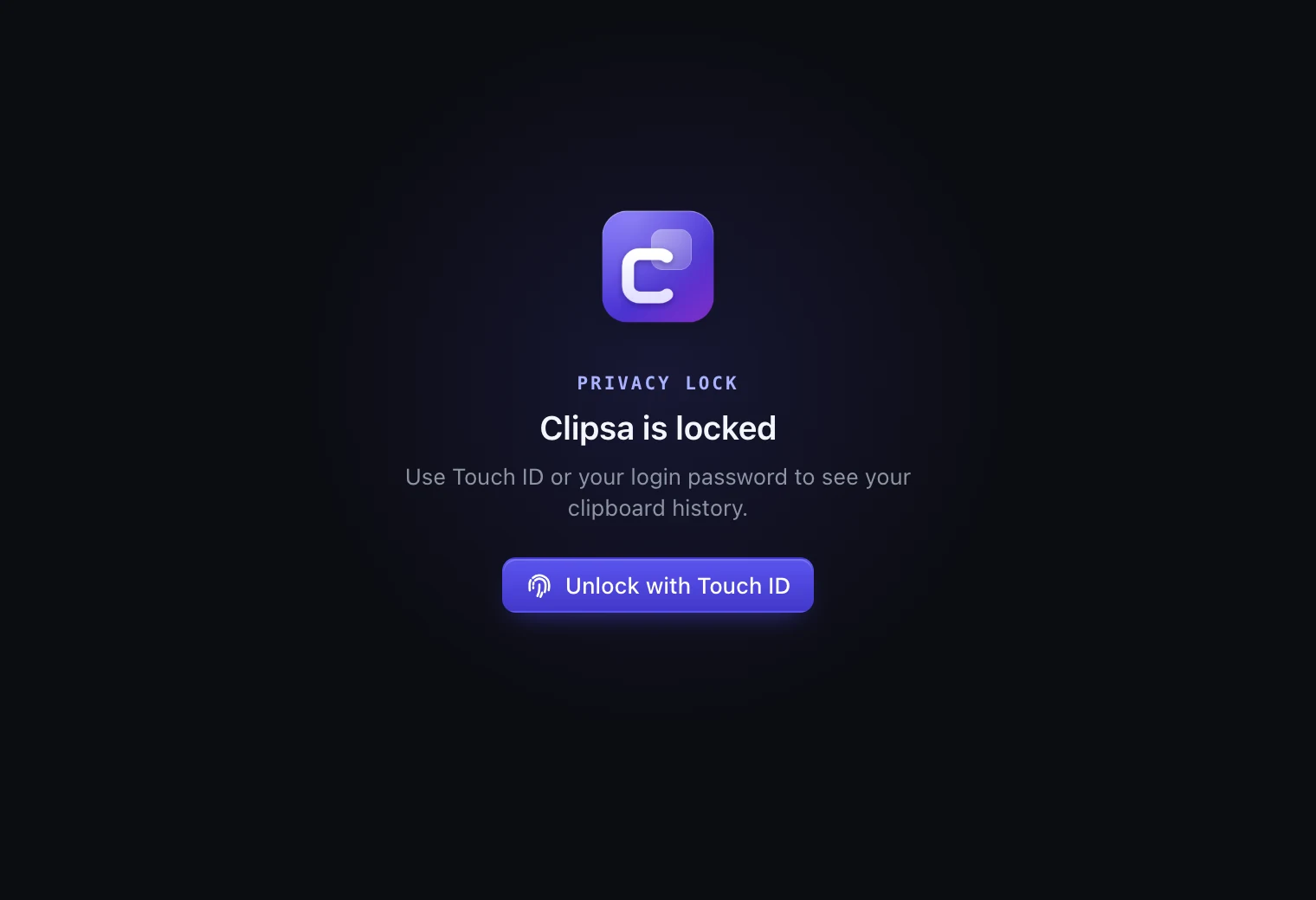
The Clipsa window while locked: the app icon, the words Clipsa is locked, and an Unlock with Touch ID button.
  • Paste as plain text

    Strip formatting with Shift + Enter, or make plain text the default.

  • Search and filter

    Search the text and titles of your history and filter by content type.

  • Retention limits

    Cap the number of items and delete items after a number of days, checked after every capture and hourly.

  • Per-app exclusions

    Never record copies from an app: by bundle id on macOS (com.agilebits.onepassword7) or exe name on Windows (keepass.exe).

  • Launch at login

    Optional. Lives in the tray with Open, Pause/Resume monitoring and Quit.

  • Light and dark themes

    Light, dark or follow the system, plus a compact mode for a denser list.

  • Updates with release notes

    Opt-in update checks show what's new before you install. Updates are verified against a signing key built into the app.

  • Keyboard-first

    ↑ ↓ to move, Cmd/Ctrl + 1–9 to paste one of the first nine, Tab to switch the type filter, Cmd/Ctrl + C to copy without pasting, Cmd/Ctrl + , for Settings, Esc to close.

Compare

How Clipsa stacks up

Some apps are ahead on sync, OCR and text actions. Here is where Clipsa is different.

Feature Clipsa Maccy Paste Raycast
Encrypted by default Yes, always NoPlain SQLite Not documented YesVendor's claim; closed source
Open source MIT MIT No No
macOS, Windows and Linux All three NomacOS NomacOS, iPhone, iPad NomacOS, Windows
Free Free Free$9.99 on the Mac App Store, as support $29.99/year FreeHistory kept 3 months; unlimited with Pro

Download

Get Clipsa for your system

Each system exposes different clipboard details. Here is exactly what works where.

Latest release: Clipsa 0.1.3 ·

  • macOS

    .dmg for Apple Silicon and Intel

    • Text, rich text, images and files
    • Skips password-manager copies
    • Per-app exclusion by bundle id
    • Pastes into the previous app (needs Accessibility permission)
    • App lock with Touch ID or login password
    • Key stored in the Keychain
    Download for macOS

    Or with Homebrew:

    brew install --cask mordamax/tap/clipsa
  • Windows

    .msi or NSIS .exe installer

    • Text, rich text, images and files
    • Skips password-manager copies
    • Per-app exclusion by exe name
    • Pastes into the previous app
    • App lock with Windows Hello (must be set up)
    • Key stored in Credential Manager
    Download for Windows

    Windows builds are not code-signed yet, so SmartScreen may show a warning.

  • Linux

    .AppImage, .deb or .rpm

    • Text, rich text, images and files
    • Pastes into the previous app on X11 (Wayland compositors may block simulated keystrokes)
    • Key stored in the Secret Service (GNOME Keyring, KWallet, …)
    • Not available: Skipping password-manager copies
    • Not available: Per-app exclusion
    • Not available: App lock
    Download for Linux

    Needs a Secret Service provider such as GNOME Keyring or KWallet to store the key. Linux can't tell which app owns a copy or see password-manager markers: use Pause monitoring in the tray before copying secrets, or delete the item afterwards.

Updates are optional: on the first-run screen you choose whether Clipsa may check GitHub Releases for updates. Updates are verified against a signing key built into the app before they are installed. Prefer to build it yourself? See the development instructions.

Pricing

Free. Every feature.

No ads, no account, no trial and no history cap. Every feature is in the free download.

  • Clipsa

    Free MIT licensed

    • Every feature, no limits
    • macOS, Windows and Linux
    • Pastes straight into the app you're in
    • Optional, signed update checks
    Download Clipsa
  • Mac App Store edition Coming

    Paid as a way to support development

    For people who prefer installing and updating through the App Store. It unlocks nothing extra. Because of App Store rules, that edition copies the item from the quick picker and you press ⌘ V yourself, while the free download pastes for you.

FAQ

Questions, answered

Something missing? Ask in GitHub issues.

Is Clipsa free?

Yes. The download from this site is free and open source under the MIT license, with every feature, no trial and no account. A paid Mac App Store edition is coming as an optional way to support the project; it has the same features, except that App Store rules don't let it paste into other apps for you.

Does Clipsa send my data anywhere?

No. Your clipboard history never leaves your computer. Clipsa has no telemetry, analytics or crash reporting.

The only network request Clipsa can make is the update check, and it is off until you opt in on the first-run screen or in Settings. When enabled, Clipsa asks GitHub Releases for the latest version at startup and once a day. See the privacy policy.

How is my history encrypted?

Each item's content (text, HTML, image bytes, file paths) is encrypted with AES-256-GCM using a fresh random 96-bit nonce. A random 256-bit master key is generated on first run and stored in your OS keychain. Duplicates are detected with HMAC-SHA256 under a key derived from the master key, so the database holds no plain hash of your content.

If keychain access is denied or fails, Clipsa shows an error and refuses to start. It never silently creates a new key, because that would make your existing history unreadable.

Not encrypted: content type, size, timestamps and settings. Read the full security model.

What about passwords?

On macOS and Windows, Clipsa skips copies that password managers mark as concealed, transient or auto-generated. This is on by default. You can also exclude apps so nothing copied while they are in front is recorded.

Linux does not expose these markers or the app that made a copy. There, use Pause monitoring from the tray, or delete the item afterwards.

Why does macOS ask for Accessibility permission?

Pasting into another app means simulating Cmd + V, and macOS only allows that for apps with the Accessibility permission. Clipsa needs it only for pasting from the quick picker; capturing your clipboard does not need it.

Grant it in System Settings → Privacy & Security → Accessibility, or let Clipsa request it from its Settings. Until then, copy an item from the history window and paste it yourself.

Where is my history stored?

In clipsa/clipboard.db inside your data directory: ~/Library/Application Support on macOS, %APPDATA% on Windows and $XDG_DATA_HOME (or ~/.local/share) on Linux.

Keep everything you copy. Privately.

Free and open source for macOS, Windows and Linux.